

Happy Holidays
Celebrate together
Showing posts tagged Employee Appreciation (2). Show all ideas

Looking for the perfect thank you message for employees? Discover 100 employee appreciation messages to recognize hard work, dedication, teamwork, and achievements.

Show appreciation to your admin superheroes with free online group cards. Celebrate Admin Professionals' Day using Bravoboard’s fun, collaborative kudos boards.
Real sample boards for everyday celebrations and milestones. Explore Bravoboard use cases
Browse sample boards and digital celebration walls for birthdays, holidays, work anniversaries, thank-yous, farewells, and more. Each link opens a real Bravoboard so you can see how people add messages and photos on a shared page—the same experience you get for personal boards. If you are also evaluating Bravoboard for a workplace, there are additional samples below for branding and admin-friendly privacy and moderation controls.
Sample board links open in a new browser tab.











Looking for workplace-oriented examples? Samples below cover branding, access rules, moderation, and embed settings.
Open a sample to experience the board the way a visitor does. For Opt-in & acknowledgement and Contributor question, open the board and then use Add message (or your board’s equivalent)—those controls appear on the new-post form, not the wall.

See your logo and background on the wall so the board feels on-brand for your organisation.

Guests must enter the password before they can see the board. Try adding a message, use BRAVO as the password to unlock.

Anyone who can view the board still needs the posting code before they can add a message. Try adding a message, use invite code YOUROCK when prompted.

Open the board, then start a message—guests see your notice and must tick to acknowledge before they can post. Bravoboard records each acknowledgement with a timestamp.

Same flow: open the board, then add a message—guests see your custom yes/no checkbox (your wording). Look for [] I would like to be included in future opportunities, in this example.

The same board experience, meant to be embedded on sites you have allowlisted.
Guests never see moderation queues or approval screens—those are for board owners and team admins. Use the Screenshots — how teams govern boards row for post review settings and the pending queue.
These panels are where your team set rules.
Click a screenshot to open a larger view. Cards with several panels group those steps together—use the arrows in the viewer to follow the workflow.
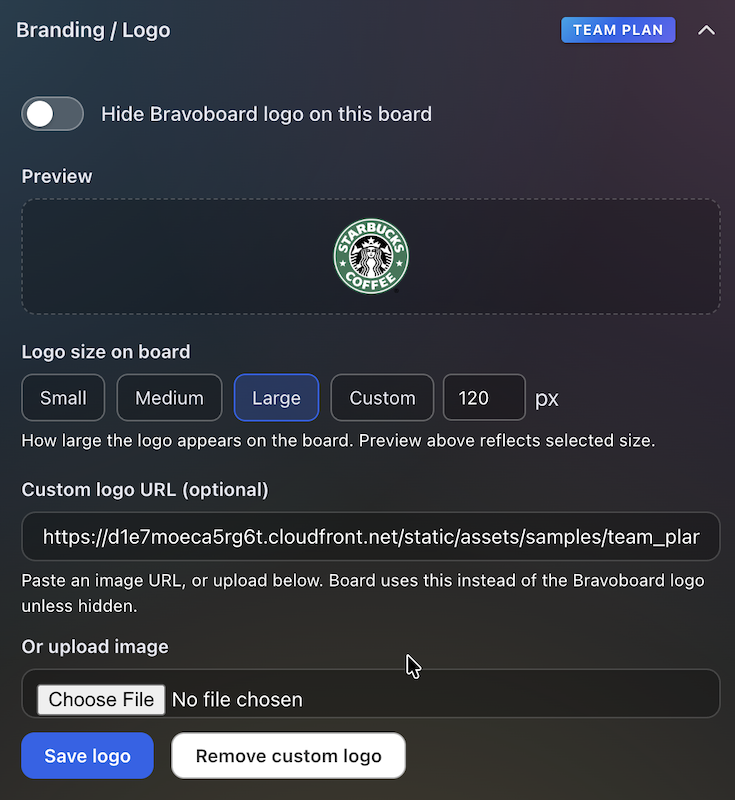
Settings for uploading a logo and background so every team board matches your visual identity.
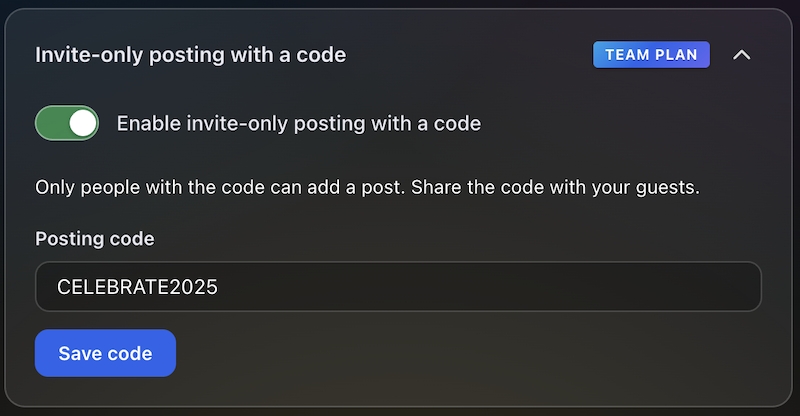
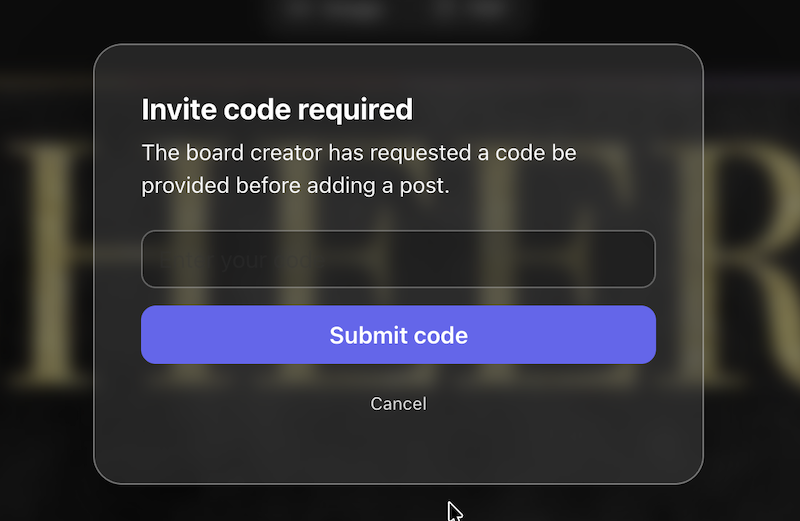
Require a posting code for messages, or limit contributions to invited people only—so the wall stays readable while you control who can post.
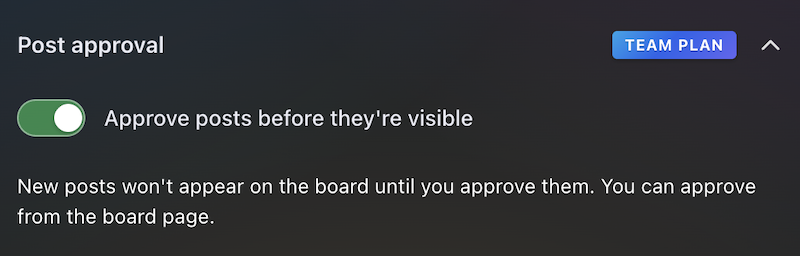
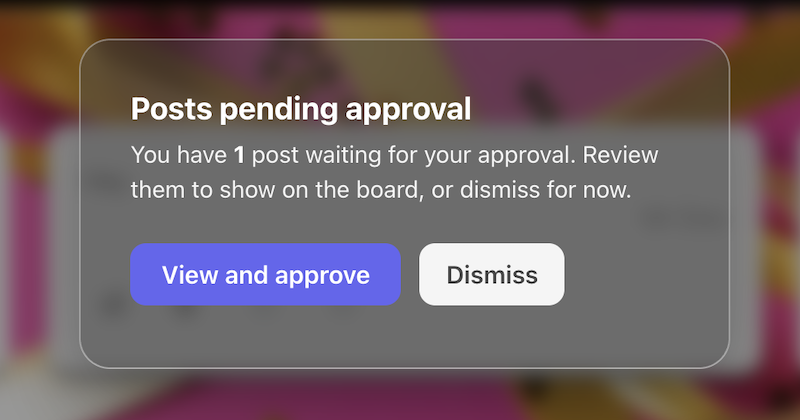
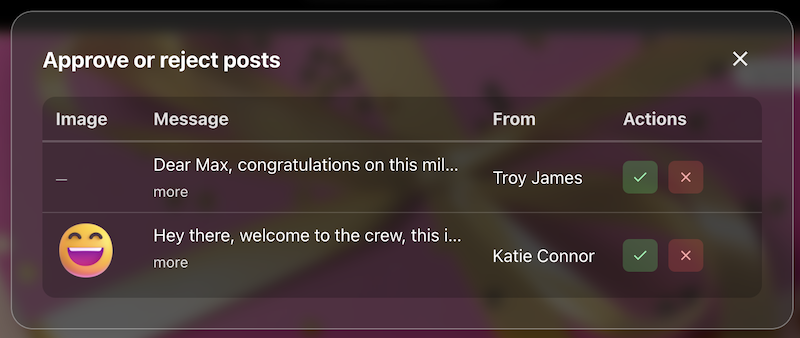
The queue or settings where approvers accept or hold posts before they appear on the live board.
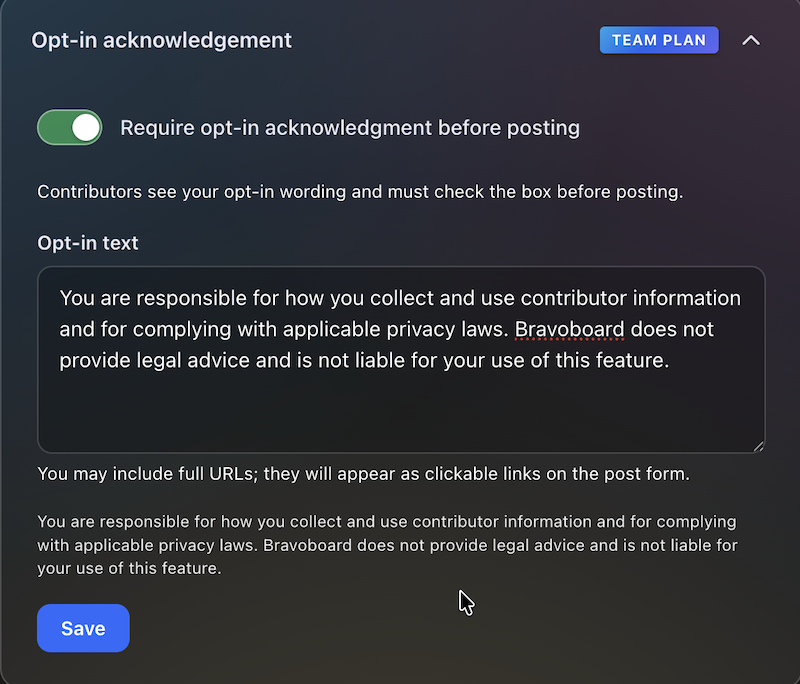
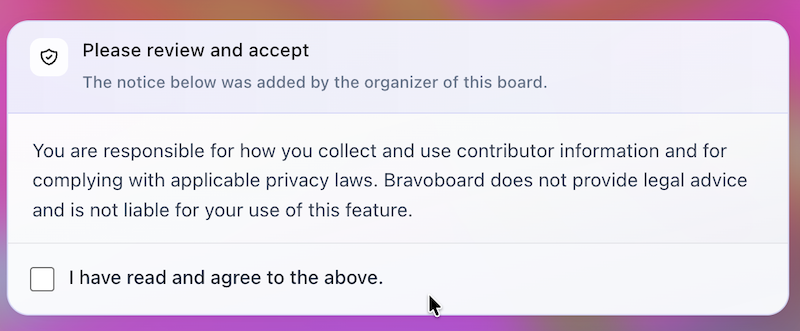
Turn on the notice contributors must read, edit the text, and require a checkbox before posting—acknowledgements are stored with timestamps for audits and CSV export.
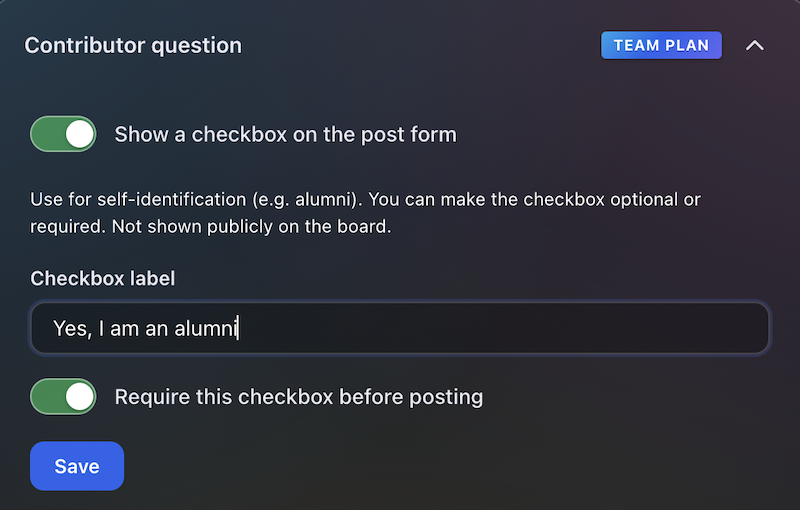

Contributors see this checkbox when they add a message. You write the label (for example self-ID or a light policy line), make it optional or required, and keep answers for admins and CSV export—not on the public wall.
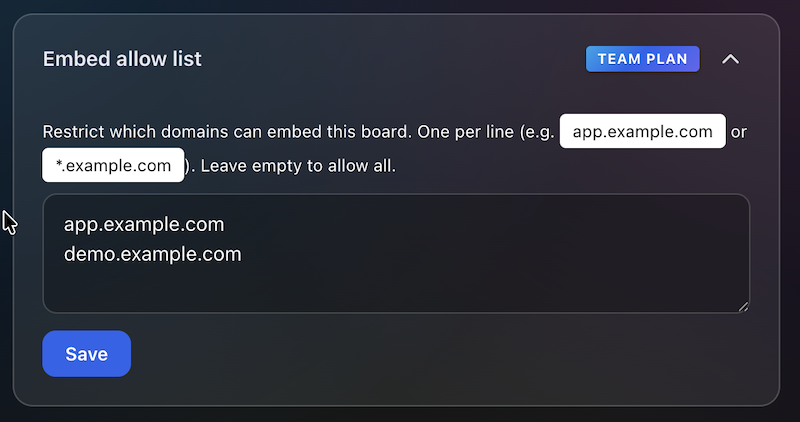
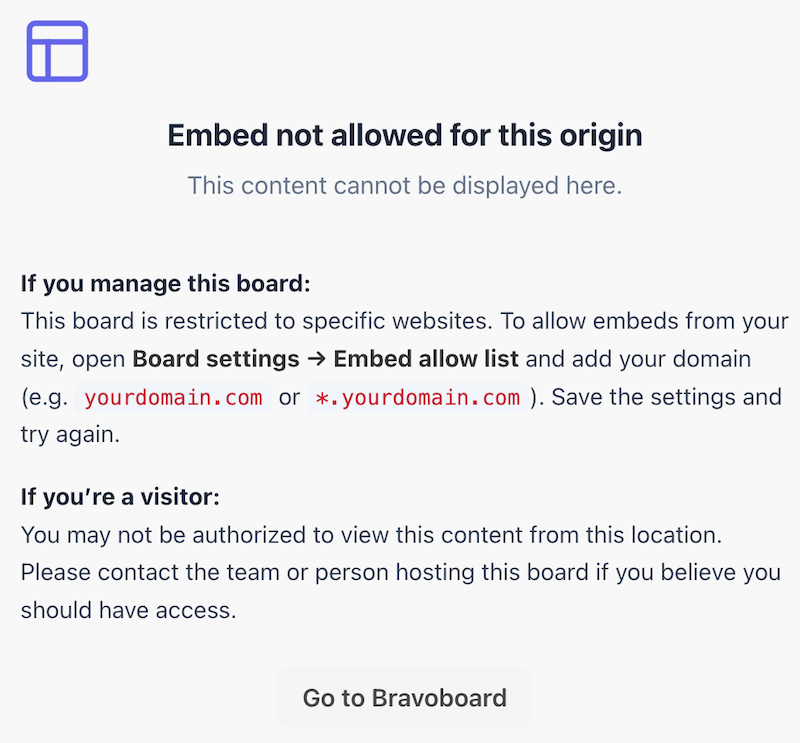
Allowlist the sites that may embed this board, so it does not appear on random third-party pages.
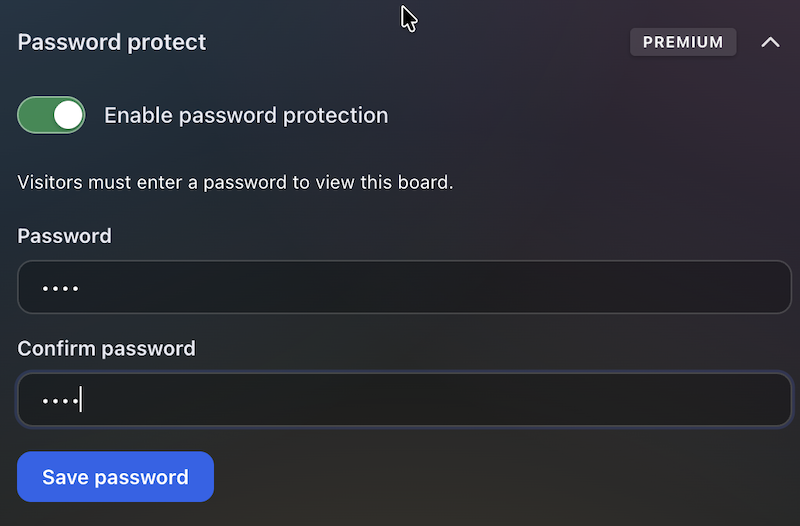
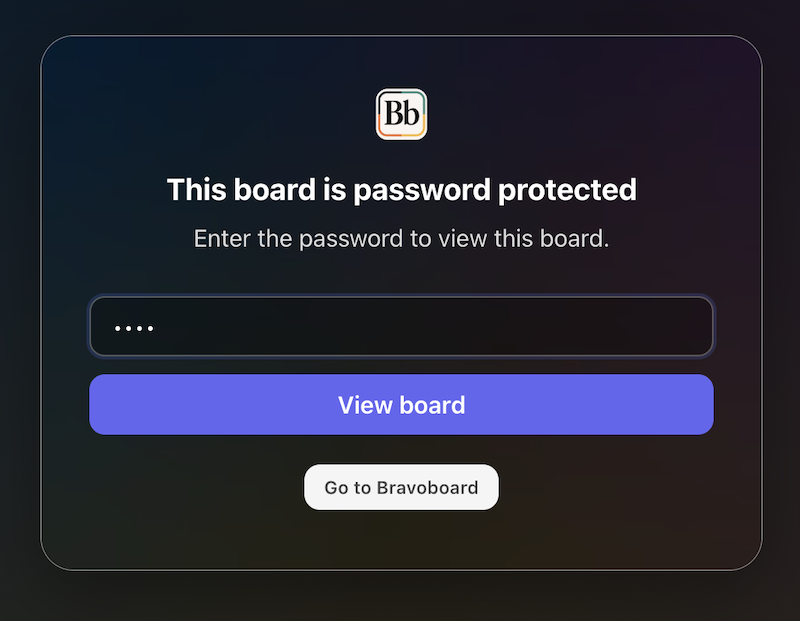
Set a password so visitors must unlock the board before they can read it—separate from posting rules, posting codes, and invite-only contribution.
Bravoboard is a free and joyful way to express appreciation with personalized group cards for birthdays, farewells, holidays, and team wins.
Our platform makes it easy to say “thank you,” celebrate big milestones, and spread positivity with messages, GIFs, and memories from friends and colleagues — all in one beautiful board.
Celebrating someone special? Create your Bravoboard now and make it unforgettable.